Increasing storage capacity, falling prices per GB and faster access to data also means, that media such as pictures and videos and games will consume more and more storage. Many times media like games need to be available on multiple computers to be consumed. Often there is no need for backup, because the media can always be re-downloaded.
In this post I will introduce three ways of sharing media in your local network. Depending on the use case one or another method can bring a better experience at usage.
1. Built-in media sharing software
Current operating systems like Windows 10, Ubuntu and MacOS offer builtin software to share media. In this section I will demonstrate how to configure them.
Windows
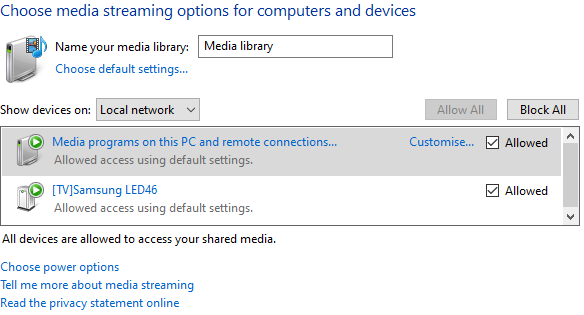
To activate the DLNA-Server on Windows 10 you have to open the Control Panel and switch to the following path: Control Panel\Network and Internet\Network and Sharing Centre\Media streaming options.
By default all devices on your local network can access media on the computer after you turn on media streaming. You can remove devices and change the default settings for access like what kind of media should be shared.
Shared are the standard Windows folders Music, Pictures and Videos. To add media to your library you do not have to copy it in those folder, but just right click the file or folder and create a shortcut. This shortcut needs to be moved to the actual folder like Music.
Ubuntu 19.10
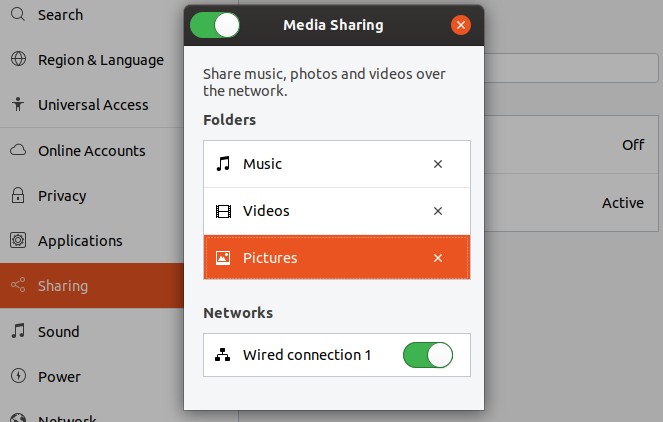
Ubuntu 19.10 is remarkable because of the new builtin media sharing options. To activate them you just need to open options -> Sharing -> activate Sharing -> activate Media Sharing. Like in Windows there are three default folders to be shared: Music, Pictures and Videos. Also there can be added own folders by using the “+” button on the bottom of the list.
MacOS
Unfortunately MacOS does, at the time of writing, not offer any media sharing software by default. But there are multiple good options to share media from your Mac-PC like Plex. Just download the right Plex media server for your device, unzip and install it.
2. Use old smartphones as media server
Old smartphones offer a lot of potential for applications like streaming media on a specific device like a Smart-TV. Depending on the price class, old smartphones can offer much space for media like music, pictures and videos. The biggest advantage of using your smartphone is, that the selection of wanted media is much more comfortable than with the remote control of a TV.
Android AllCast
A very useful app for media sharing on Android devices is AllCast from ClockworkMod. It is available as free app, but also in a premium version. Currently the most features are available in the free version. The app automatically connects to your Smart-TV in your network and finds your media on the device. When connected a file can be chosen and directly shared with the TV, which is very comfortable to use.
iOS
The Apple Store also offers multiple options on media sharing apps. One of them is iMediaShare. It is an easy-to-use app with everything you need to share your media files from any iOS device.
OTG feature
Many current devices offer USB On-The-Go (OTG) which allows you to connect your USB devices to a smartphone. This can be practical for media which you want to watch only once and then delete it, but also want to choose it on your smartphone without any hassle.
3. Run a standalone media server
Another option is to run a standalone media server or a Network Attached Storage (NAS) with DLNA functionality.
FreeNAS
If you have many use cases for a NAS you can buy specialized hardware like the Synology DS218J or set up FreeNas on your own Hardware. It requires a 64-bit CPU and at least 8GB of RAM.
NAS4Free
When your use cases are only occasionaly streaming media to your TV and you have some old hardware lying around, you can set up a NAS4Free server on your 32-bit CPU. You can download NAS4Free here.
Feel free to leave a comment below. I will try to respond to any questions in the comment section as fast as possible.
